Clone Builtin Rule
By default the Name, Severity and Category of the builtin rules can be updated by users with appropriate permissions. Editing the rule definition or auto fix definition of a builtin rule is not allowed.
This section covers the details on edit the definition of a built in rule
By default, users with the appropriate permissions can update the Name, Severity, and Category of built-in rules to better align with their organization’s standards.
However, modifying the core rule definition or its auto-fix logic is not permitted, ensuring the integrity and consistency of the built-in rules. This section outlines the details for editing the configurable attributes of a built-in rule.
Role required to Clone a builtin Rule -
-
Navigate to
Organization→Users. -
Click on the
Edit Permissionsaction item of the user who requires the clone rule permission -
Click on
Assign Permissionsand selectClone Builtin Rulepermission. -
Click on save to apply the permission to the user.
Clone builtin new Rule -
-
Navigate to
Rules→Quality Rules -
Once the
Clone Builtin Rulepermission is assigned to the user, a new action item calledClone Rulewill be enabled for all builtin rules. -
Click on
Clone Ruleaction item against the rule which requires customization. -
Enter the basic details -
-
Rule Name- Name of the rule -
Rule Severity- Severity of the rule -
Rule Category- Category of the rule -
Rule Tags- Tags associated with the rule. Tags can be used to filter issues
-
Rule Description- Description of the rule in Markdown format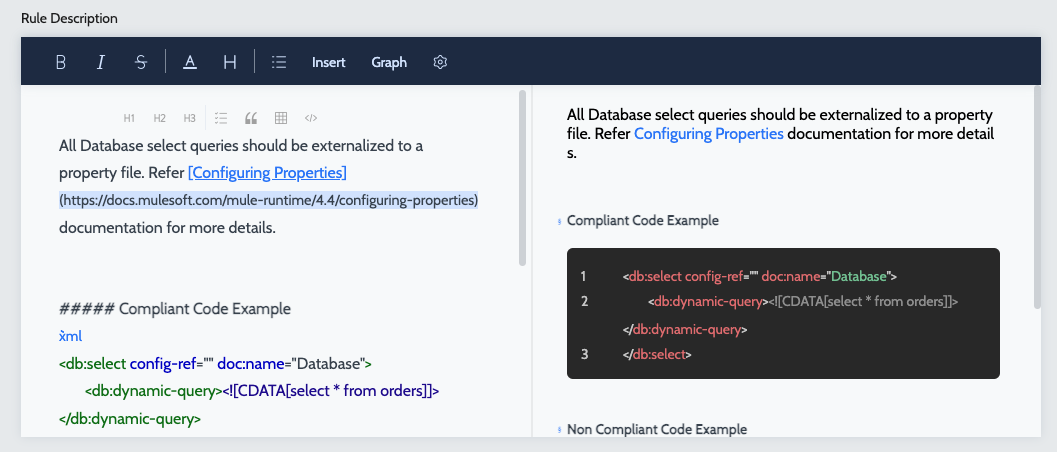
-
Rule Definition- Definition of the rule. Rules are specified in Groovy -
Auto Fix Definition- Auto Fix Definition of the rule. Rules are specified in Groovy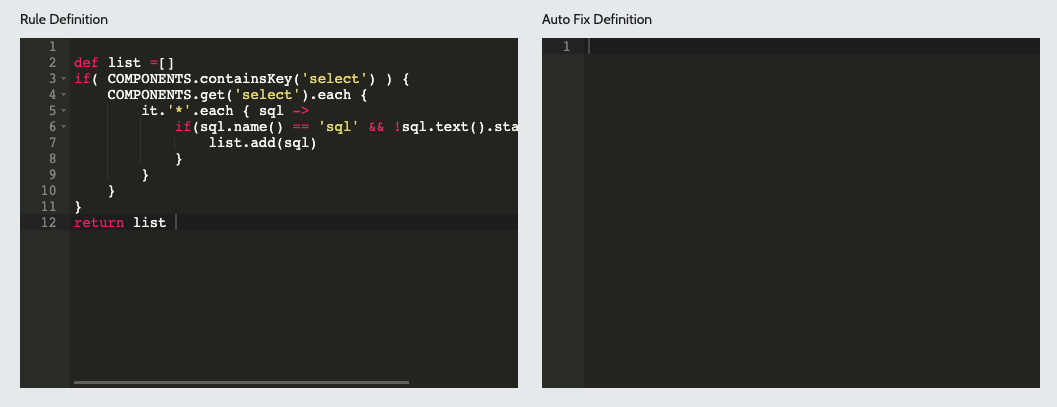
-
-
Click on
Submitto create the rule definition. -
Once the rule is created, it can be added to the desired quality profile for use during analysis.