HTTP MCP Server Configuration
The following section describes the steps required to configure the IZ HTTP MCP server in various IDEs.
Visual Studio Code
-
Open the preferences and search for MCP
-
Click on
MCP: Add Server→HTTP (HTTP or Server-side Events) -
Enter the URL (Eg: http(s)://<YOUR_HOST_NAME>/mcp and click enter) and name as
falcon-suite-mcp-server -
A mcp.json file with the entered details will be opened
-
Add the following headers
x-falcon-service-url,x-falcon-access-token. -
To generate a token, refer token generation
-
The final configuration should look something like
"falcon-suite-mcp-server": {
    "url": "http(s)://<YOUR_HOST_NAME>/mcp",
    "type": "http",
    "headers": {
        "x-falcon-service-url": "http(s)://<YOUR_HOST_NAME>",
        "x-falcon-access-token": "<Token Generated from IZ Suite>"
    }
}
Cursor IDE
-
Open the preferences and search for MCP
-
Click on
View: Open MCP Settings -
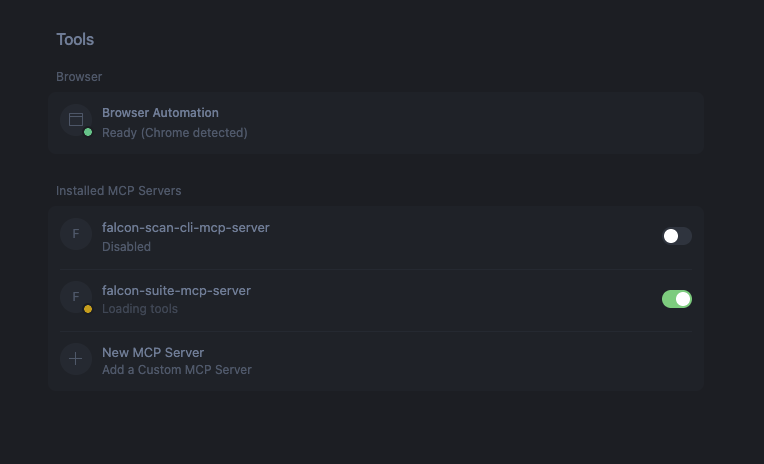
In the settings screen click on
New MCP Serverand add the below configuration:
    "falcon-suite-mcp-server": {
        "url": "http(s)://<YOUR_HOST_NAME>/mcp",
        "type": "http",
        "headers": {
            "x-falcon-service-url": "http(s)://<YOUR_HOST_NAME>",
            "x-falcon-access-token": "<Token Generated from IZ Suite>"
        }
}-
To generate a token, refer token generation
-
Save the mcp.json file.
-
Navigate back to Cursor Settings tab and toggle the enable switch.