Apex Applications
|
To view all the applications
-
Navigate to
IZ Eye→Salesforce Apex. Overview includes -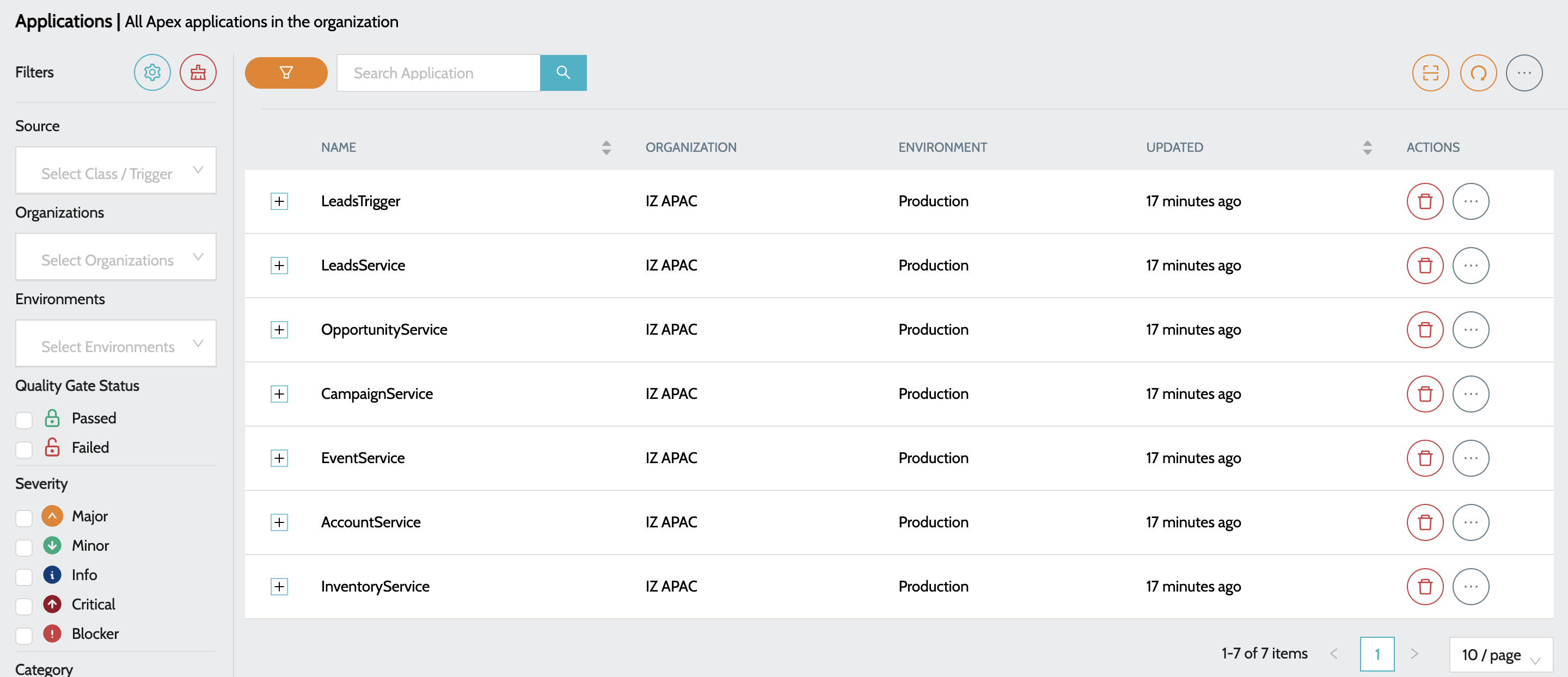
-
Name- Name of the Apex Class or Trigger -
Organization- Organization to which the app belongs to -
Environment- Environment to which the app belongs to
-
-
Click on the
Plusicon to view the details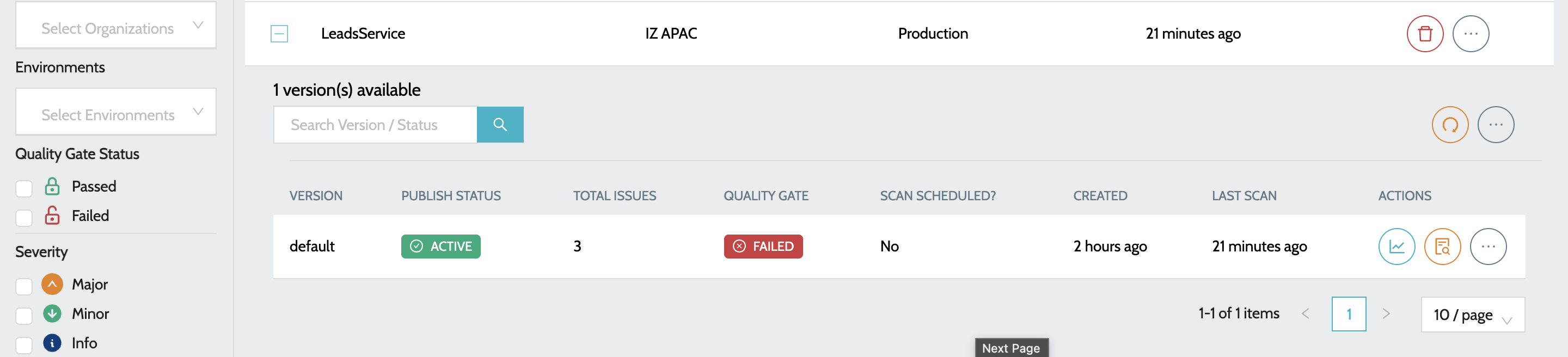
-
Summary details include -
-
Total Issues- Indicates total number of issues once the application is scanned -
Status- Indicated the status of class / trigger in Salesforce -
Last Scan- Time since the last scan was performed
-
-
Actions include -
-
View Dashboard- Summary report of all the issues. -
View Issues- Detailed report of the issues with file names and line numbers.
-
