Configure Schedule
|
Configuring the initial Schedule
This schedule is required to sync the applicable subscriptions and resource groups for the first time. Creating a recurring schedule will periodically check for new Subscriptions and resource groups.
-
Navigate to
Schedules→Schedulesand click onConfigure Schedule -
Select
Azure Integration Services Syncjob type and proceed
-
Select the appropriate schedule based on the requirement (Either
OneTimeorRecurring)
-
Once the schedule completed successfully, we should be able to see all the Subscriptions and Resource Groups under
Organizationmain menu.
-
Click on
View Environmentsto view all the resource groups under thee subscription.
Configuring schedule for continuous code scans
-
Navigate to
Schedules→Schedulesand click onConfigure Schedule -
Select the appropriate schedule based on the requirement. Applicable schedules include -
-
Azure Logic App Analysis- To scan the applicableLogic Appsunder the selected resource group -
Azure API Management Analysis- To scan the applicableAPI Management - Policiesunder the selected resource group -
Azure Function App Analysis- To scan the applicableFunction Appsunder the selected resource group
-
-
Select the Subscriptions and Resource Groups to perform the scan
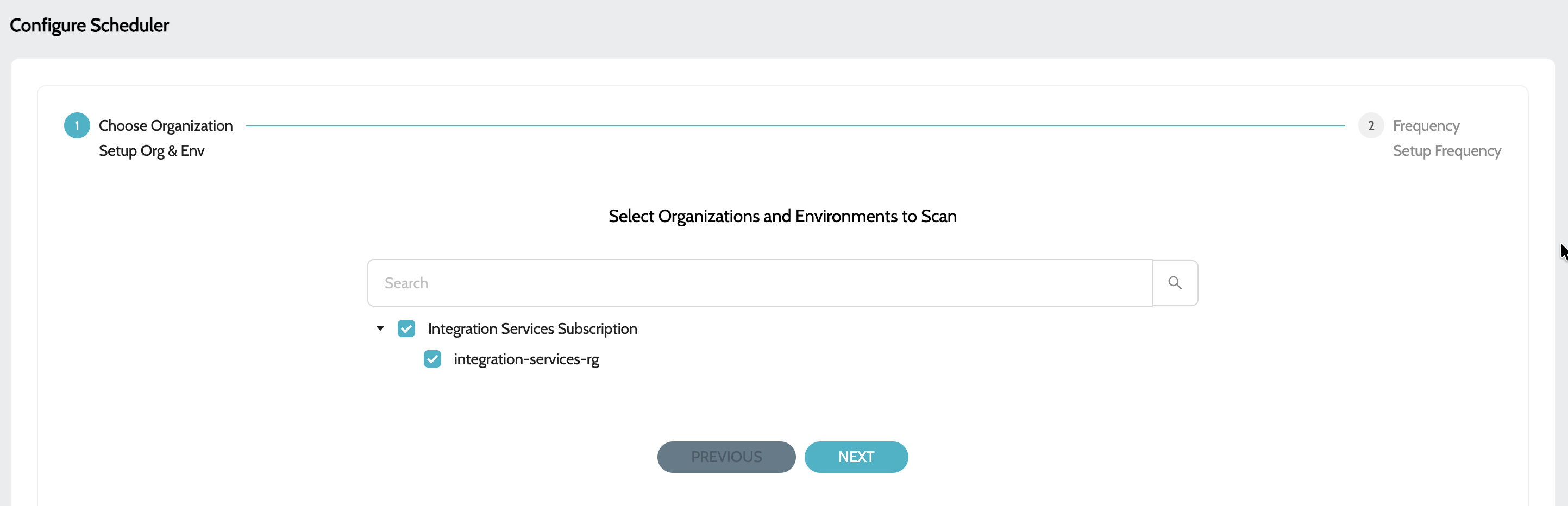
-
Select the schedule/frequency at which the analysis should be performed

-
Click on
Submitto configure the schedule